Suno Prompts Manager
Manage, reuse, and organize Suno Style prompts on suno.com with a workflow that stays local-first by default and supports optional sync when you want it.
Built for daily Suno users
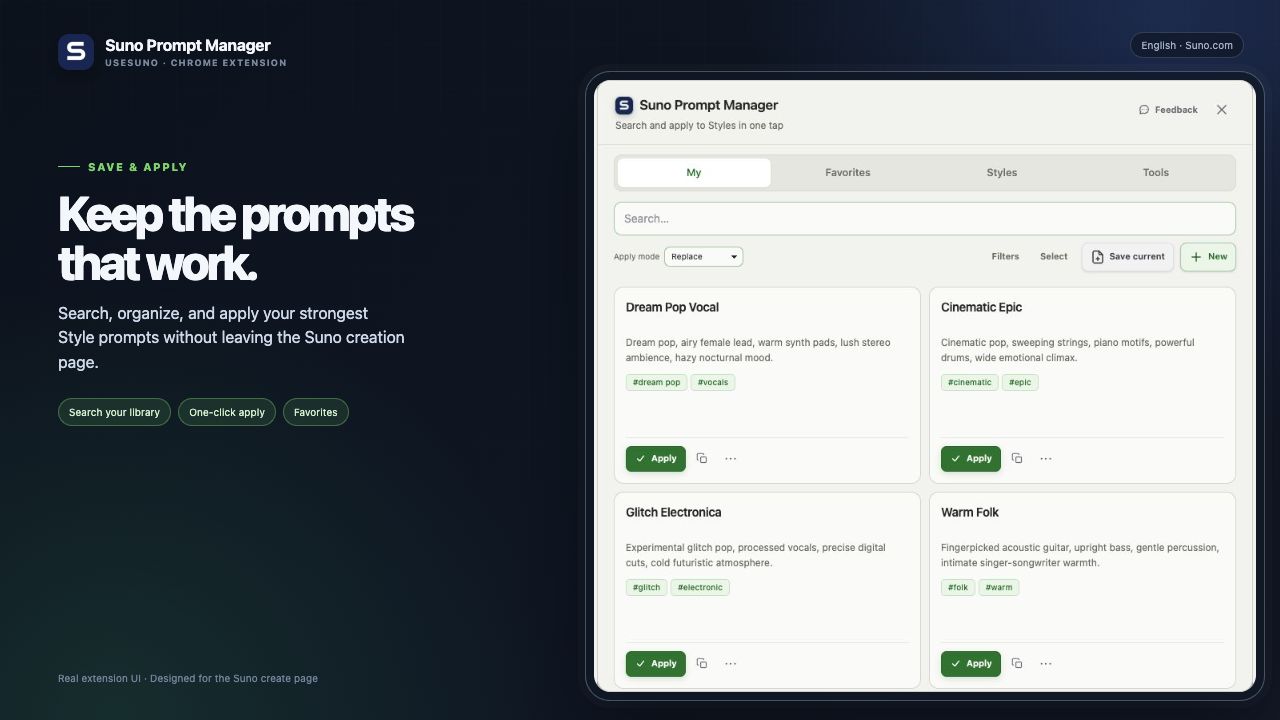
Save the lines that work. Stop losing them in chat history or scattered notes.
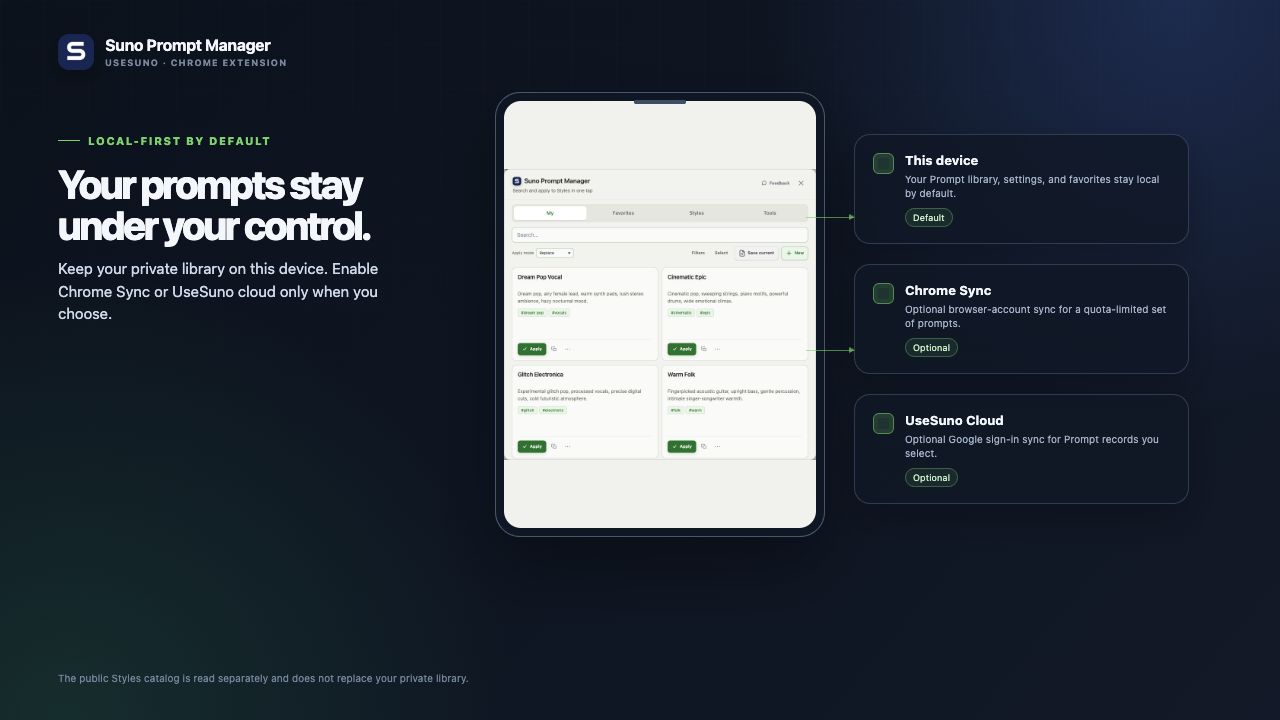
Local-first
By default your prompts stay on your device. Turn on Chrome storage.sync if you want prompts synced across browsers where you’re signed into Chrome.
On-page workflow
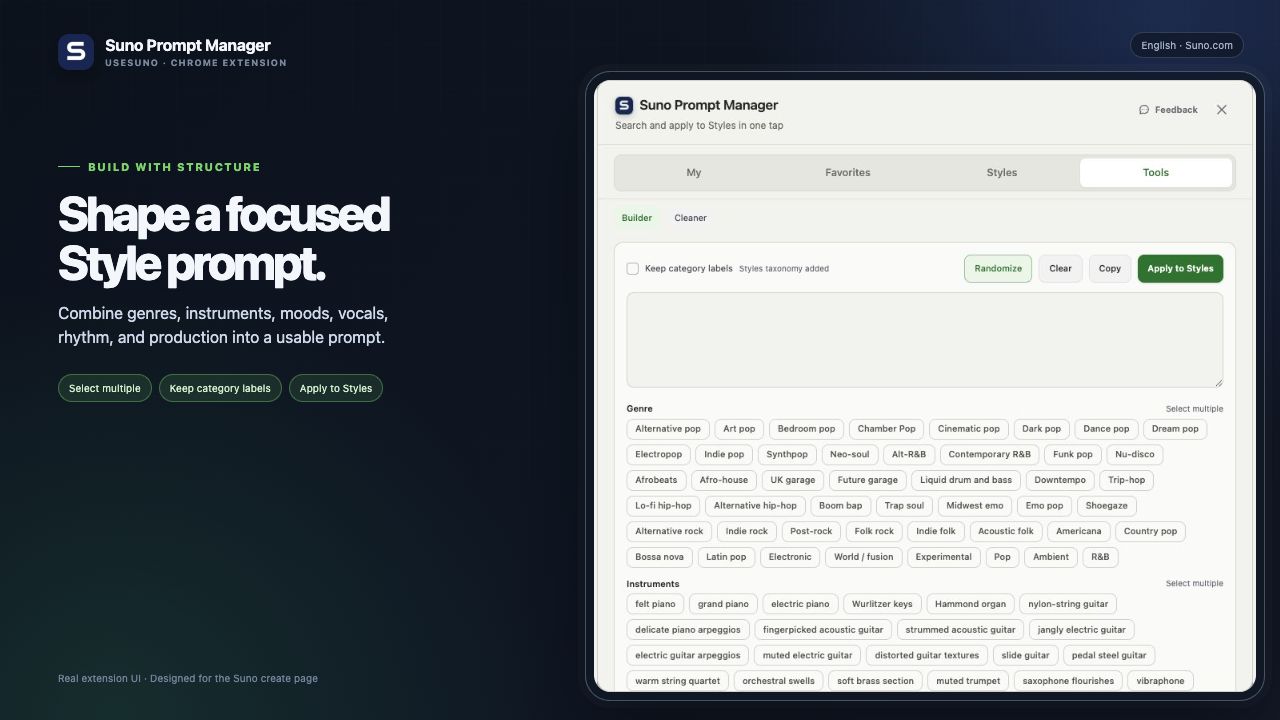
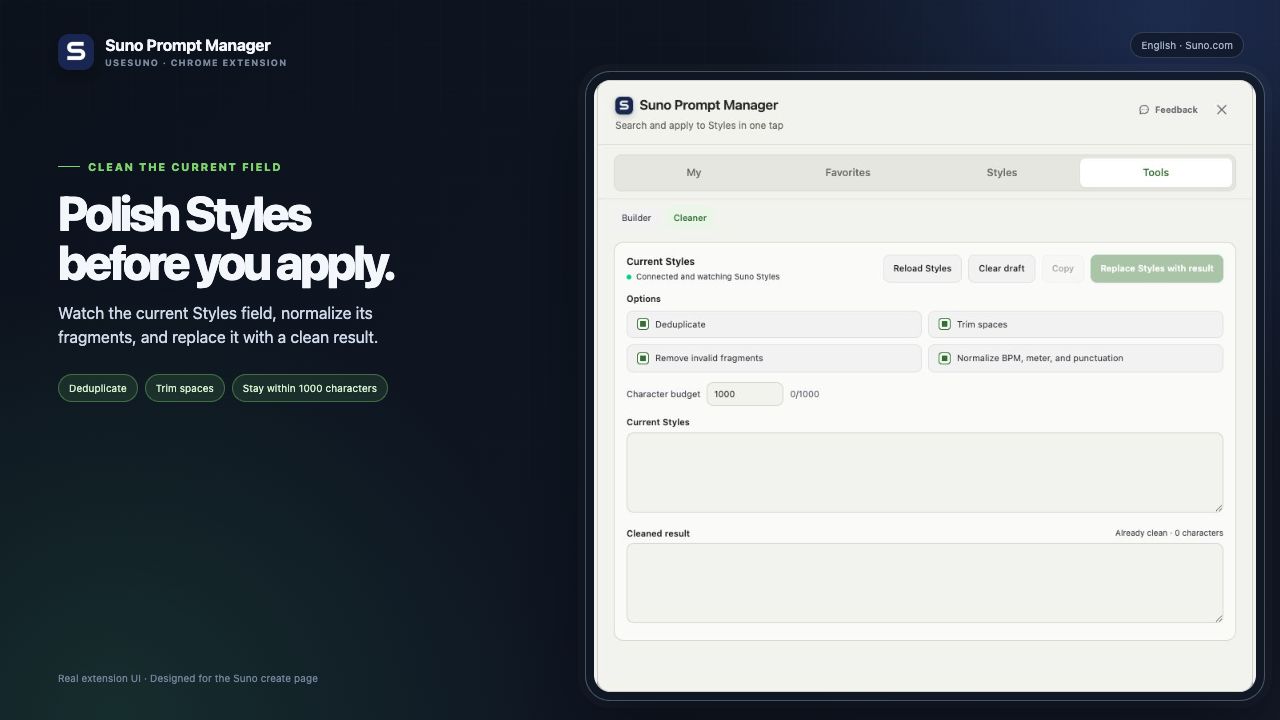
Open the prompt library from the circular control on the creation page—drag the panel, match Suno light/dark, and apply straight into Style (up to 1000 characters per prompt).
Multilingual UI
Interface in many languages (e.g. en, zh, ja); first launch follows your browser language.
Optional cloud
If you connect Supabase-backed sign-in (Google OAuth or email magic link), prompts can merge with the cloud table spm_user_prompts. Community features may appear when a full backend is configured.
How it works
Open on suno.com
Go to the Suno creation page. Use the library button or press Alt+Shift+P on that tab.
Manage prompts
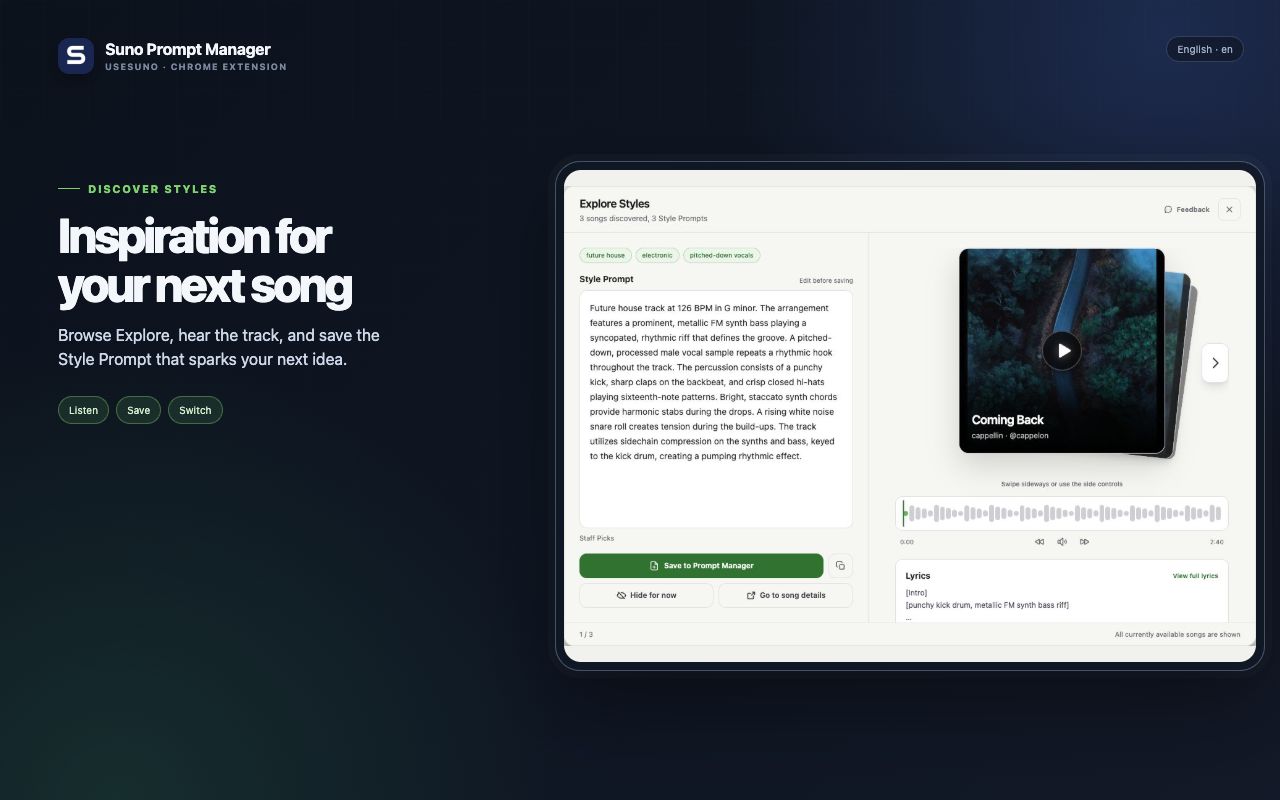
My / Favorites / Trending (when available), search, sort, edit—and apply to Style in one click.
Permissions & data
Chrome lists concrete permission names in the install dialog—this section maps them to behavior. Full legal detail is in our privacy policy.
- Host / site access (
suno.com): Required so the extension can inject its panel and write to the Style field only on Suno pages—not your other tabs. - Storage (
storage.local/storage.sync): Saves your prompt library; sync is optional and follows your Chrome account when you enable it. - Popup UI: Language, theme, import/export JSON, sync toggles, and account controls when cloud sign-in is enabled.
- No broad browsing: We don’t read or upload your general browsing history as a product feature.
- Network: No routine upload of prompts to usesuno.com for core storage—optional cloud features only run if you enable them.