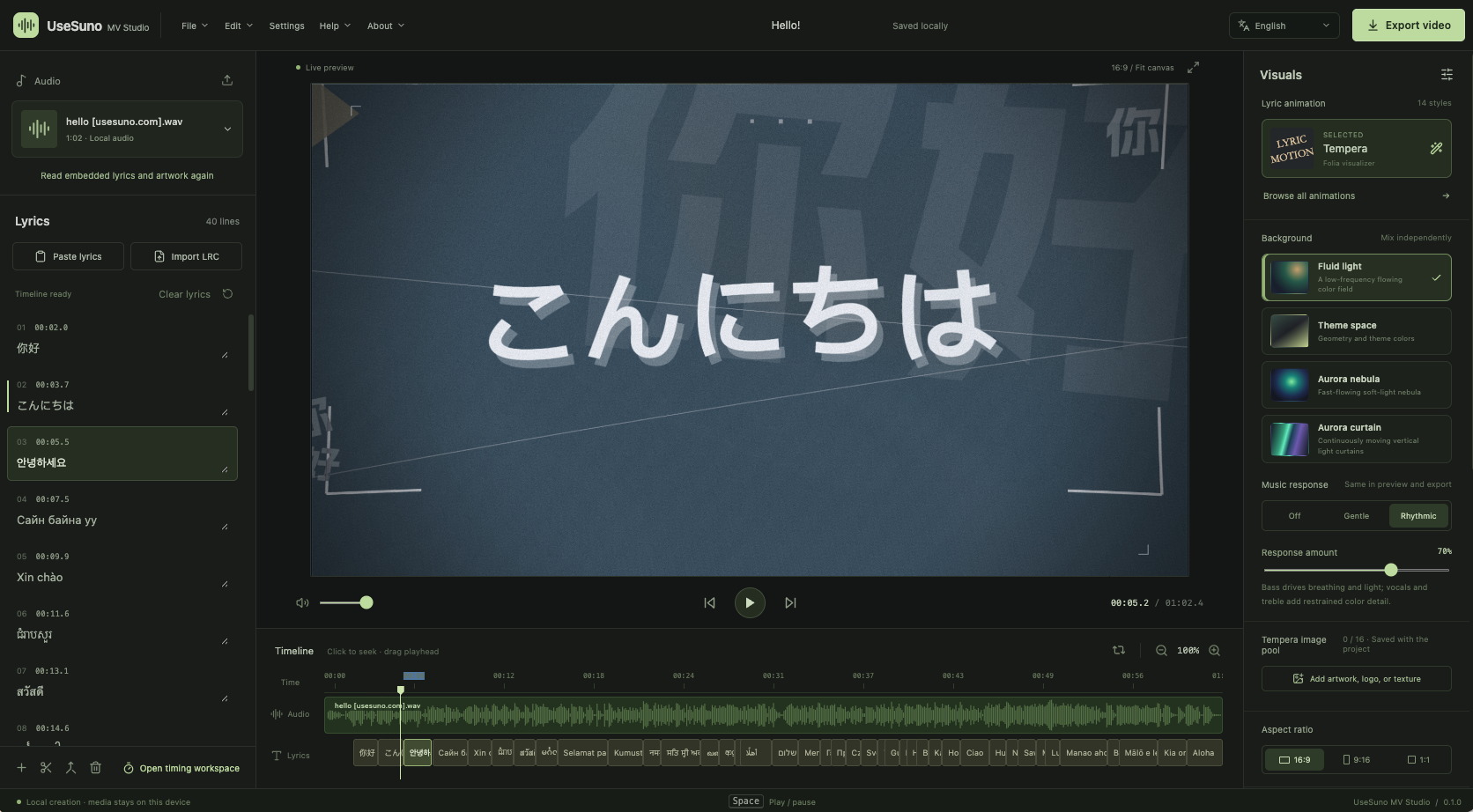
Start with a song and a lyric file
UseSuno MV Studio is an open-source, browser-based lyric video tool. Import a local audio file and lyrics, choose a visual treatment, check the timing, and export a video with the song attached. The Studio runs the creative workflow on your device, so the audio, lyrics, and project data stay local instead of going to a server.
Open UseSuno MV Studio and follow this sequence: import audio, add lyrics or an LRC file, adjust timing, choose animation and background, preview the result, then export. The editor saves the project to browser storage as you work. You can also download a portable .lyricmv project for another session.
What the Studio puts in one workspace
- MP3, WAV, M4A, and FLAC audio imports, subject to the browser and device decoder.
- Plain text, TXT, standard LRC, enhanced word-timed LRC, and some embedded lyric or cover metadata.
- Fourteen lyric animations, four backgrounds, three aspect ratios, Google Fonts, and local fonts.
Keep the audio and lyrics in the same project
Import the audio before judging timing. The Studio reads its duration and may find embedded lyrics or cover art. Check the language and timing when it finds several candidates. The right words can belong to another mix.
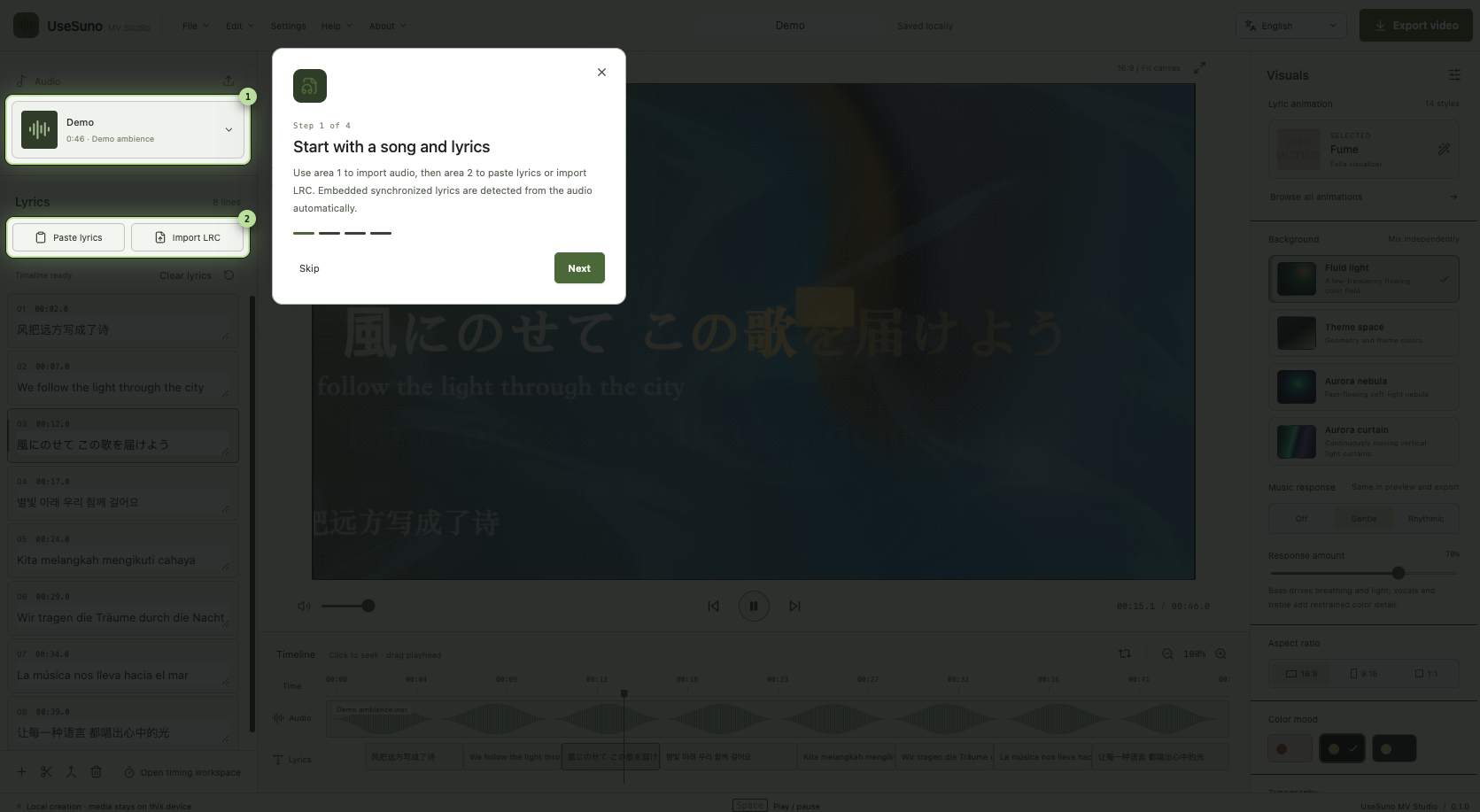
Choose an animation that serves the song
Lyric animation changes the way a listener reads the song. Some styles keep a phrase in view while the camera moves through a larger text space. Others build a poster, a dialogue, an orbit, or a sequence of emphatic words. Start with the song's pace and lyric structure, then choose a template whose movement leaves the important words readable.
Fourteen visual treatments
| Animation | Visual character |
|---|---|
| Fume | Turns the full lyric into a text world and moves the camera through connected phrases. |
| Classic | Places words across the frame, reveals them in sequence, and leaves a light trail. |
| Cadenza | Uses spatial type, fragments, and light beams for an experimental composition. |
| Partita | Builds staggered columns and grouped phrases for songs with clear section structure. |
| Tilt | Tilts the visual center to give a phrase a stronger emotional angle. |
| Claddagh | Places letters along an elliptical path so the lyric circles through the frame. |
| Monet | Uses a poster-like layout that can combine lyrics with cover art or a portrait. |
| Cappella | Arranges words as message bubbles for duets, call-and-response, and group vocals. |
| Diorama | Builds a three-dimensional lyric space and sends the camera between text layers. |
| Traverse | Uses Studio glyph waypoints for a word-level 3D journey through the lyric. |
| Pendolo | Uses clock-like arcs and circular motion to make the words follow the pulse. |
| Tempera | Breaks the lyric into printed, collaged units and supports layered visual material. |
| Sonnet | Combines Japanese-inspired type treatments with directed camera movement. |
| Still | Uses a quiet poster composition with restrained motion and generous space. |
Most of the visualizers come from Folia
Thirteen of the fourteen visualizers are adapted from and included from the open-source project Folia. The project uses the GNU AGPL-3.0 license, so the Studio keeps the relevant source notices, license information, and attribution with the application. Read the Studio's license and source pages when you redistribute a build.
Aurora Traverse is a Studio-specific treatment. It takes the idea of moving through a three-dimensional lyric space from the Folia Diorama direction, then uses Studio's own glyph waypoints and render path. The Folia attribution still matters for the source-derived visualizers and their dependency chain.
Match the background to the animation
Animation and background are separate choices. Fluid Weave reacts to low-frequency audio with a moving cover color field. Theme Space uses geometric forms. Aurora Nebula creates a field of stars and light, while Aurora Curtain uses vertical color bands.
Set the aspect ratio before judging composition: 16:9 suits a horizontal player, 9:16 fits a vertical feed, and 1:1 suits a square post. Check font scale and line length before adding motion.
Prepare audio and LRC lyrics
MP3, WAV, M4A, and FLAC cover the common audio cases. The Studio asks the browser to decode the file, so a format name alone cannot guarantee playback on every device. The importer can also inspect embedded lyrics and cover art. Treat those as candidates, then preview the selected text against the song.
Understand line timing and word timing
A standard LRC file gives the start time for each lyric line:
[00:12.50]We walk beneath the city lights
[00:17.80]The night is learning how to sing
The first line begins at 12.5 seconds. The renderer estimates its visible span from nearby timestamps and the audio duration. This supports line animation, but it does not mark each sung word.
Enhanced LRC can carry word-level markers:
[00:12.50]<00:12.50>We <00:12.90>walk <00:13.20>beneath <00:13.70>the city lightsWord timing gives a better starting point for word reveals. Plain LRC can drive them through an estimated rhythm, which the Studio labels for review before export.
Download an LRC file for a Suno song
For a song in Suno, use the Suno Prompt Manager browser extension from UseSuno:
- Open the song detail page on Suno, or open the song in your Library.
- Find the download lyrics control beside the song.
- Choose LRC and save the file.
- Import the LRC into MV Studio, then import the matching audio file.
- Play a few sections and confirm that the lyric version matches the audio version.
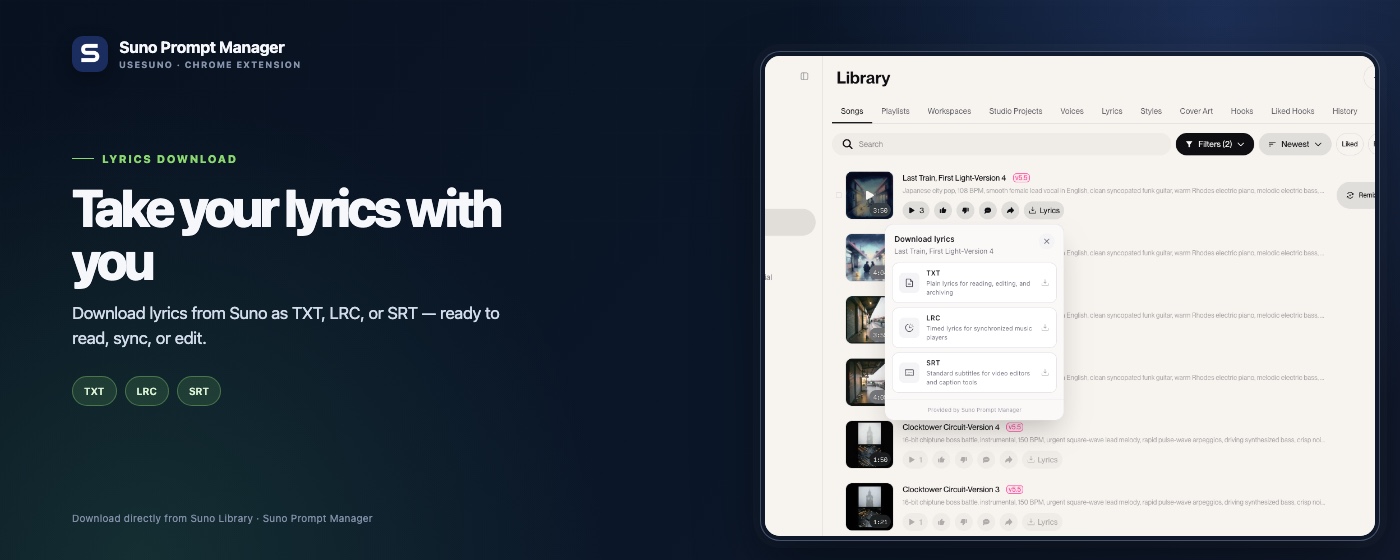
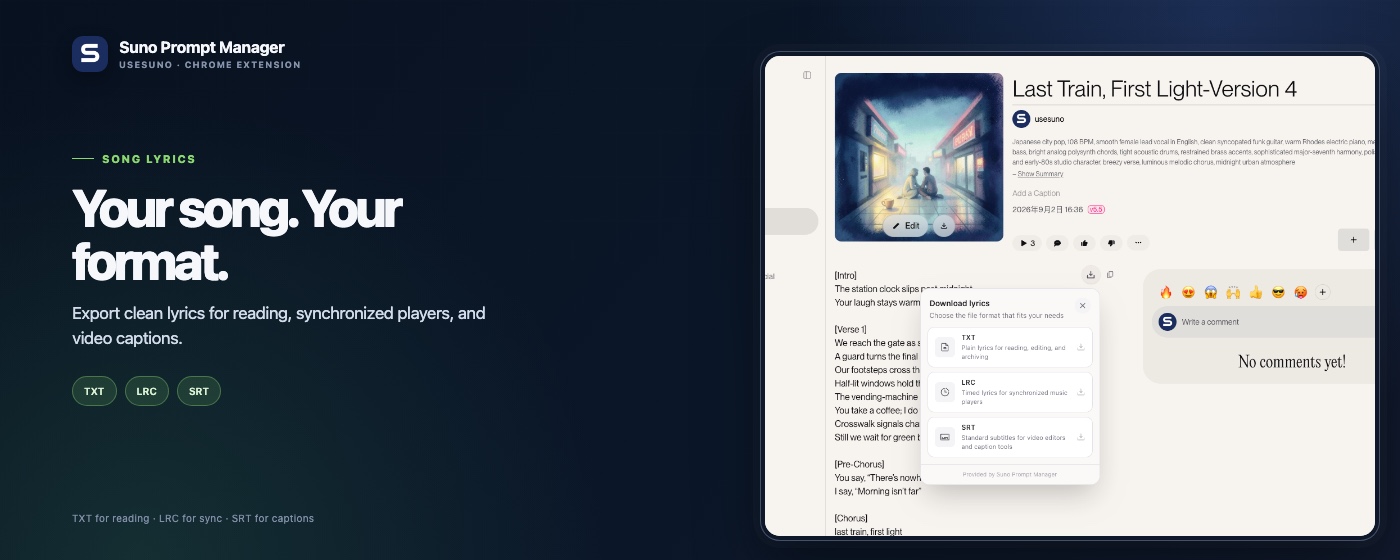
Suno Prompt Manager is an independent browser extension, not an official Suno product. Use the control shown in your current Suno account.
Create LRC timing for a non-Suno song
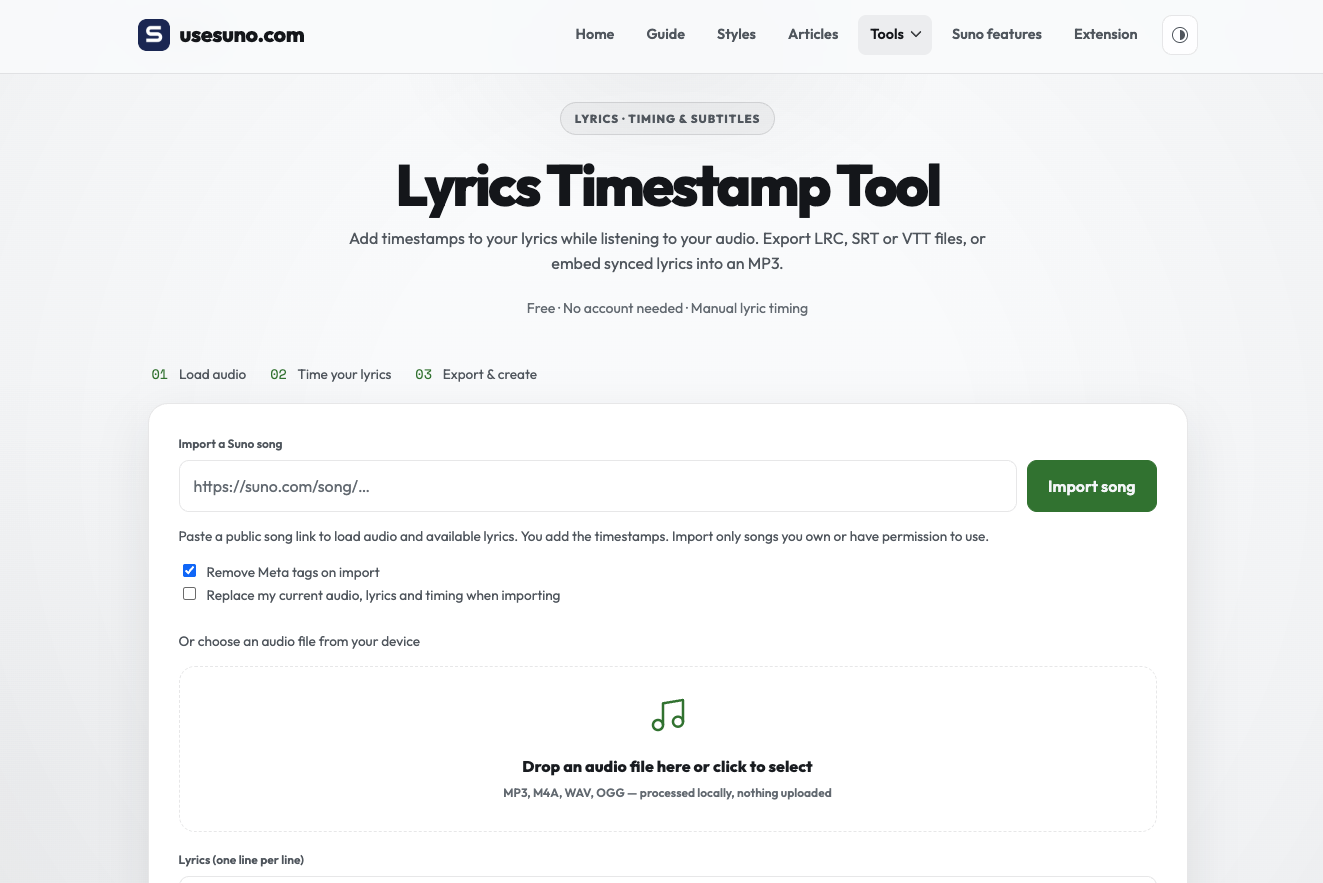
Use the Lyrics Timestamp tool when another song has plain lyrics or an unsynced text file:
- Import the audio and paste or import the lyric text in the Studio.
- Open the timing page and play the song.
- Press Tab while a word is sung to record its time.
- Use the time field or nudge buttons to move a mark.
- Apply a global offset when the whole lyric starts early or late.
- Open phrase arrangement to divide lines into visual groups.
- Save the timing back to the project, or download the result as LRC.
Use the timing shortcuts during a pass
Space plays or pauses. The up and down arrows select a word. The bracket keys nudge its time. Check a dense chorus, then the first verse and ending before tuning a template.
Export the finished lyric video
Click Export after the preview reads cleanly. The export panel checks the audio, lyric timing, font, selected range, and browser codec support before it starts. Choose the full song or enter a start and end time for a short test clip.
Frame-by-frame export
Frame-by-frame export asks the renderer for fixed timestamps, combines each frame with audio, and packages the result into a video. UseSuno MV Studio uses WebCodecs and Mediabunny for this path. It suits motion that benefits from stable timing and exact seeking.
The browser pauses this work when the Studio tab is hidden, then resumes when you return. Keep the tab open. Speed depends on the animation, resolution, audio length, font, and device.
Compatible real-time recording
Compatible recording plays the song at normal speed and uses MediaRecorder to capture the rendered stage. Choose it when the browser cannot encode the frame-by-frame combination or a style depends on live DOM, SVG, Canvas, or WebGL. Some Folia visualizers ask you to select the Studio tab or render region.
Keep the Studio visible. Switching tabs or hiding the window can stop the capture. The export panel shows the requirement before recording.
Choose a file format, resolution, and range
| Choice | Available options |
|---|---|
| Video format | MP4 with H.264 video and AAC audio, or WebM with VP9 video and Opus audio. |
| Resolution | 720p or 1080p, combined with the selected 16:9, 9:16, or 1:1 ratio. |
| Time range | The complete song or a selected start and end range for a preview or short post. |
| Other downloads | A portable .lyricmv project and an LRC file with the saved line timing. |
The browser reports whether MP4 or WebM is available. If one format fails the capability check, choose the other or switch to compatible recording. The exported video includes the project audio.
Save the project beside the video
Download the video when the export completes. The finished video stays in the current session, while the editable project remains in browser storage. A refresh or closed tab can remove the ready-to-download artifact, so keep the .lyricmv file and LRC beside the final MP4 or WebM.
Working recipe: local audio and LRC → timing check → animation and background → short preview → full export → save the video, LRC, and .lyricmv project together.